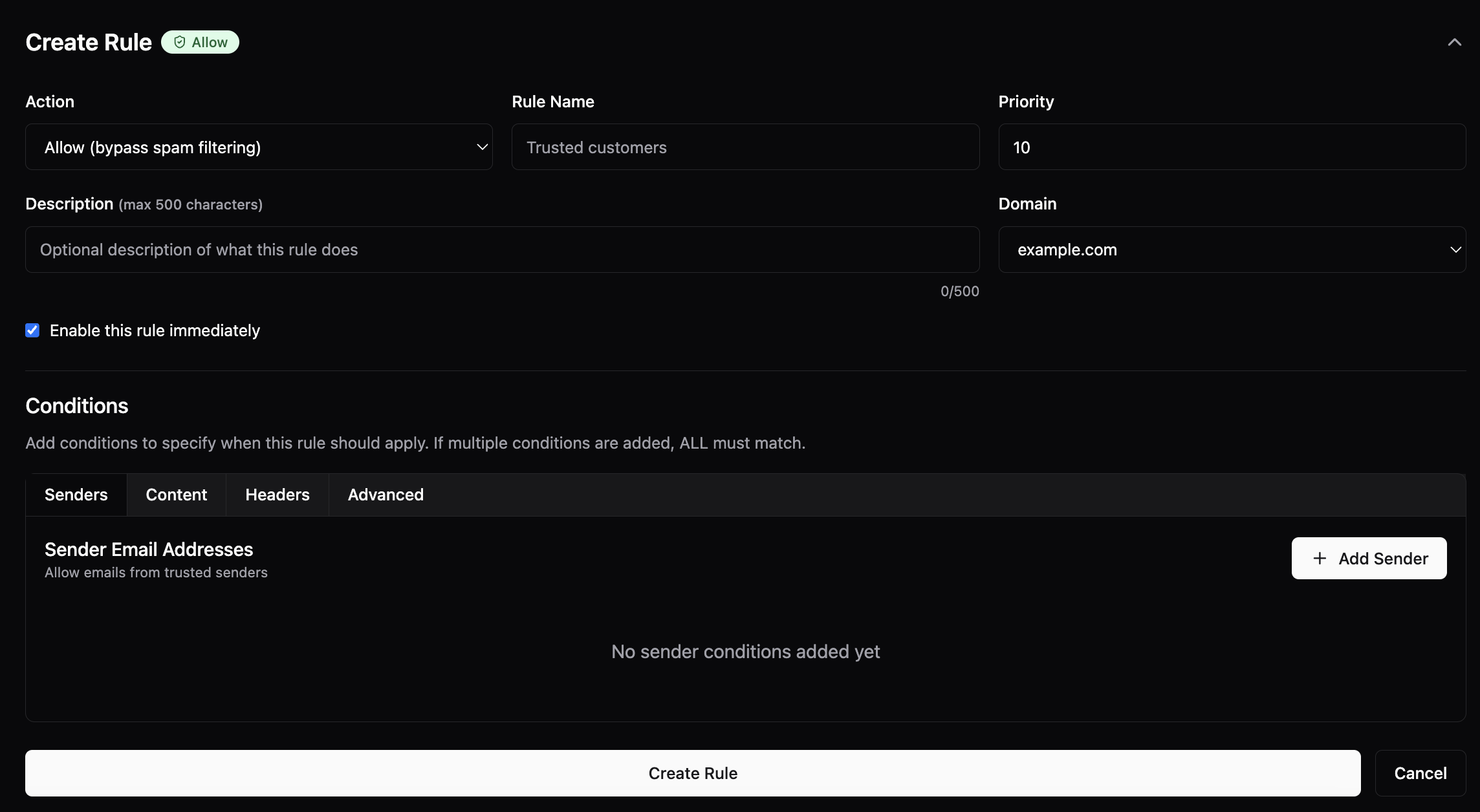
Creating a Rule
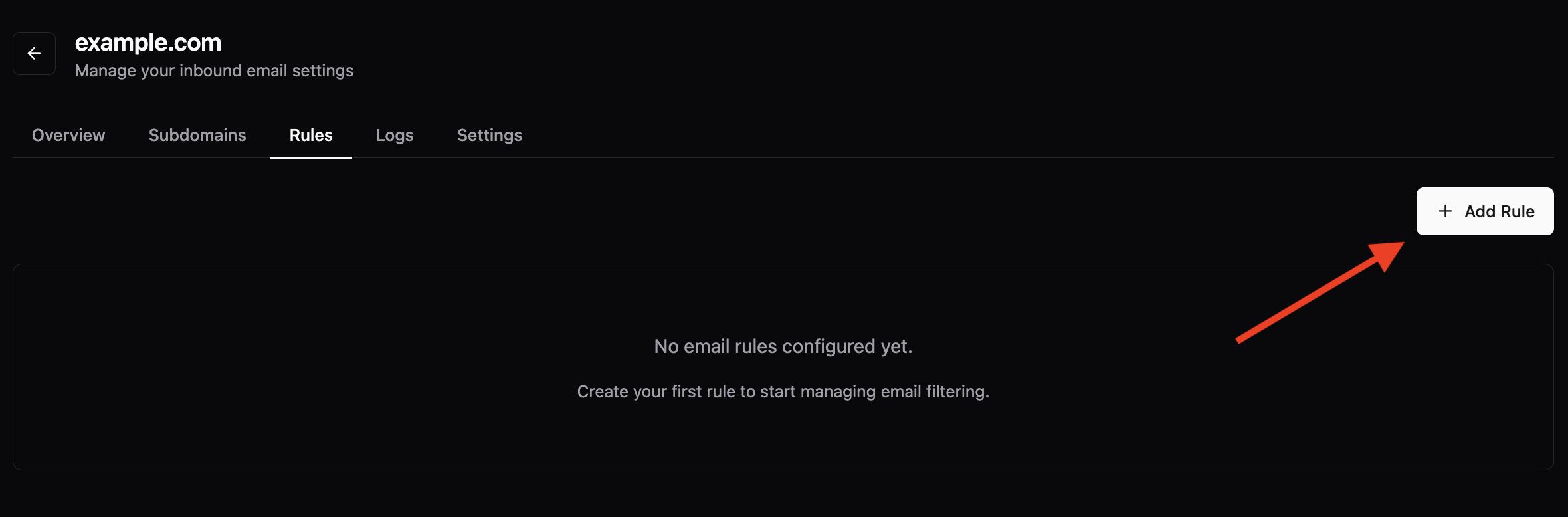
To create a rule (blocklist or allowlist), follow these steps:1. Navigate to Rules
- Log in to your account dashboard.
- Navigate to the “Inbound” section.
- Click on your domain.
- Click on “Rules”.
2. Create a New Rule
- Click on “Create Rule” or “Add New Rule”.
- Select Rule Type: Choose whether you want to create a blocklist rule or an allowlist rule.
-
Select Condition Type: Choose what you want to filter by. You can create rules based on:
- From address: Filter by the sender’s email address
- To address: Filter by the recipient’s email address
- IP address of mail server: Filter by the IP address that connects to our server
- Subject: Filter by the email subject line
- Body of the email: Filter by the email body content (uses regular expressions to match the body)
-
Enter the Value: Enter the value you wish to filter by. For example, if you wanted to block or allow
[email protected], you’d enter this in the value section. -
Select Action: Choose what action to take when the rule matches:
- Block (for blocklist rules): Block the email completely
- Allow (for allowlist rules): Allow the email to pass through
- Set a Description (optional): Set a description to help identify the rule later on. This is not a required field.